 Matan Kushner
21 KiB









Warning
The default branch has been renamed from
mastertomain. If you have a local clone, update it by running:git branch -m master main git fetch origin git branch -u origin/main main git remote set-head origin -a
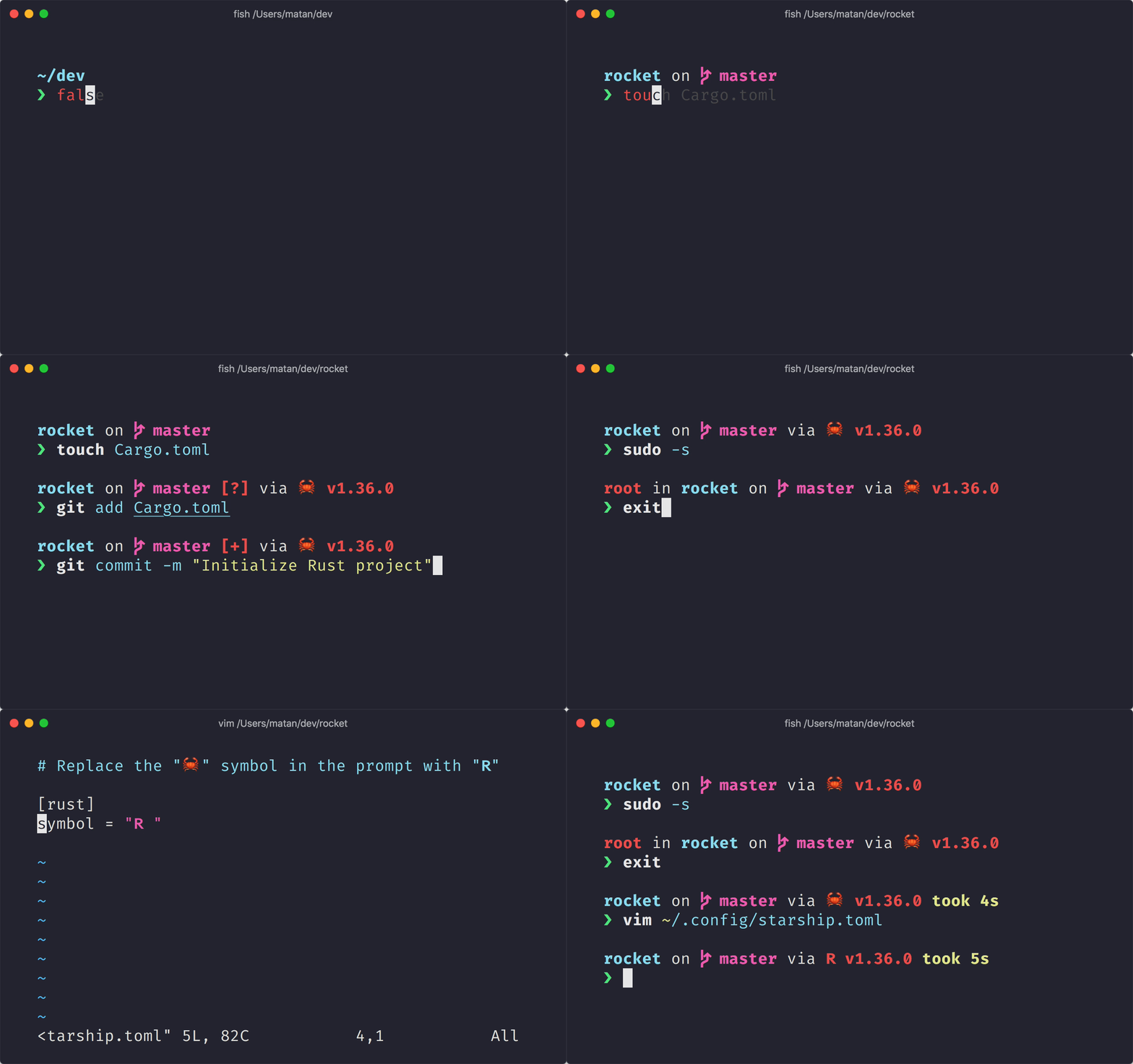
最小限の、非常に高速で、無限にカスタマイズ可能なシェル用のプロンプトです!
- 高速: 本当に 高速です! 🚀 🚀
- カスタマイズ可能: プロンプトのあらゆる側面を構成します。
- ユニバーサル: あらゆるシェル、あらゆるオペレーティングシステムで動作します。
- インテリジェント: 関連情報を一目で示します。
- 豊富な機能: お気に入りのツールをすべてサポートします。
- 簡単: 迅速なインストールが可能であり、数分で使用開始可能です。
🚀 インストール
必要なもの
- Nerd Fontがインストールされ、端末にて有効になっている(例えば、FiraCode Nerd Fontを試してみてください)。
Step 1. Starshipをインストール
以下のリストからお使いのOSを選択し、インストール方法をご確認ください。
Android
以下のいずれかのパッケージマネージャーを使用して、Starshipをインストールします。
| リポジトリ | 手順 |
|---|---|
| Termux | pkg install starship |
BSD
以下のいずれかのパッケージマネージャーを使用して、Starshipをインストールします。
| ディストリビューション | リポジトリ | 手順 |
|---|---|---|
| Any | crates.io | cargo install starship --locked |
| FreeBSD | FreshPorts | pkg install starship |
| NetBSD | pkgsrc | pkgin install starship |
Linux
お使いのシステムに合わせた最新版をインストールしてください。
curl -sS https://starship.rs/install.sh | sh
または、以下のパッケージマネージャを使用して、Starshipをインストールします。
| ディストリビューション | リポジトリ | 手順 |
|---|---|---|
| Any | crates.io | cargo install starship --locked |
| Any | conda-forge | conda install -c conda-forge starship |
| Any | Linuxbrew | brew install starship |
| Alpine Linux 3.13+ | Alpine Linux Packages | apk add starship |
| Arch Linux | 新しいシェルインスタンスを起動すると、美しくて新しいシェルプロンプトが表示されるはずです。 デフォルトで問題なければ、お楽しみください! | pacman -S starship |
| CentOS 7+ | Copr | dnf copr enable atim/starship dnf install starship |
| Debian 13+ | Debian Main | apt install starship |
| Fedora 40+ | Copr | dnf copr enable atim/starship dnf install starship |
| Gentoo | 必要なもの | emerge app-shells/starship |
| Manjaro | pacman -S starship |
|
| NixOS | nixpkgs | nix-env -iA nixpkgs.starship |
| openSUSE | OSS | zypper in starship |
| Ubuntu 25.04+ | Copr | apt install starship |
| Void Linux | Void Linux Packages | xbps-install -S starship |
macOS
お使いのシステムに合わせた最新版をインストールしてください。
curl -sS https://starship.rs/install.sh | sh
または、以下のパッケージマネージャを使用して、Starshipをインストールします。
| リポジトリ | 手順 |
|---|---|
| crates.io | cargo install starship --locked |
| conda-forge | conda install -c conda-forge starship |
| Homebrew | brew install starship |
| 手順 | port install starship |
Windows
Releasesセクション のMSIインストーラーでシステムに合った最新バージョンをインストールしてください。
以下のいずれかのパッケージマネージャーを使用して、Starshipをインストールします。
| リポジトリ | 手順 |
|---|---|
| crates.io | cargo install starship --locked |
| Chocolatey | choco install starship |
| conda-forge | conda install -c conda-forge starship |
| Scoop | scoop install starship |
| winget | winget install --id Starship.Starship |
Step 2. Starshipをシェルにセットアップ
Starshipを初期化するためのシェルの設定。 以下のリストからお使いのシェルを選択してください。
Bash
~/.bashrc の最後に以下を追記してください
eval "$(starship init bash)"
Cmd
You need to use Clink (v1.2.30+) with Cmd.
Create a file at this path %LocalAppData%\clink\starship.lua with the following contents:
load(io.popen('starship init cmd'):read("*a"))()
Elvish
Add the following to the end of ~/.config/elvish/rc.elv (%AppData%\elvish\rc.elv on Windows):
eval (starship init elvish)
注意: Elvish v0.18以降でサポートされています. For elvish versions prior to v0.21.0 the config file might instead be ~/.elvish/rc.elv
Fish
~/.config/fish/config.fish の最後に以下を追記してください
starship init fish | source
Ion
~/.config/ion/initrc の最後に次を追加してください
eval $(starship init ion)
Nushell
Add the following to the end of your Nushell configuration (find it by running $nu.config-path in Nushell):
mkdir ($nu.data-dir | path join "vendor/autoload")
starship init nu | save -f ($nu.data-dir | path join "vendor/autoload/starship.nu")
注意: Nushell v0.96以降でサポートされています
PowerShell
PowerShellの設定ファイルの最後に以下を追加してください( $PROFILE を実行してください):
Invoke-Expression (&starship init powershell)
Tcsh
~/.tcshrc の最後に以下を追加します:
eval `starship init tcsh`
Xonsh
~/.xonshrc の最後に以下を追加してください:
execx($(starship init xonsh))
Zsh
~/.zshrc の最後に以下を追記してください
eval "$(starship init zsh)"
Step 3. Starshipの設定
新しいシェルインスタンスを起動すると、美しくて新しいシェルプロンプトが表示されるはずです。 デフォルトで問題なければ、お楽しみください!
Starshipのさらなるカスタマイズを目指すなら以下を参考にしてみてください。
🤝 貢献
We are always looking for contributors of all skill levels! 私たちは常にすべてのスキルレベルの貢献者を探しています! If you're looking to ease your way into the project, try out a good first issue.
あなたが英語以外の言語に堪能な場合、ドキュメントの翻訳と更新に協力していただけると嬉しいです。 If you would like to help, translations can be contributed on the Starship Crowdin.
If you are interested in helping contribute to starship, please take a look at our Contributing Guide. Also, feel free to drop into our Discord server and say hi. 👋
💭影響を受けたプロダクト
よければStarship の作成に影響を与えた、これまでのプロジェクトをチェックしてください 🙏
-
denysdovhan/spaceship-prompt – 宇宙飛行士のための ZSH プロンプト。
-
denysdovhan/robbyrussell-node – JavaScript で書かれた Cross-shell 対応の robbyrussell テーマ。
-
reujab/silver – アイコンと cross-shell 対応のカスタマイズ可能な powerline ライクなプロンプト。
❤️ スポンサー
Support this project by becoming a sponsor. 名前やロゴがあなたのホームページへのリンクとともに表示されます。
🔒 コード署名のポリシー
SignPath.ioでの無料のコード署名がSignPath Foundationによって提供されています。
コード署名のロール:
- レビュワー:Astronauts
- Approver、Author:Mission Control
This program will not transfer any information to other networked systems unless specifically requested by the user or the person installing or operating it.

📝 ライセンス
Copyright © 2019-present, Starship Contributors.
このプロジェクトは ISC でライセンスされています。